
Instead of manually checking your wedding countdown and rewriting juice reminders, build a wedding countdown juice cleanse schedule in your calendar, with separate entries for planning, confirmed order details and optional drinks. This 2026 workflow keeps the practical details together without turning your wedding date into a deadline to change your body.
- Home Juice suits beginners seeking certified-organic cold-pressed juice with clear serving details.
- Build your wedding countdown juice cleanse schedule around existing meals, appointments and confirmed order information.
- Use your wedding app for the countdown and Google Calendar for editable reminders; no automatic connection is assumed.
- Keep juice optional, follow bottle storage instructions and avoid unfamiliar routines immediately before your wedding.
Why this matters
A countdown shows how close the wedding is. It does not tell you whether an order is confirmed, whether you have fridge space or whether a reminder clashes with a fitting.
Use the countdown as a planning reference, not an eating instruction. Your calendar should make everyday arrangements easier, rather than add another set of rules to an already busy week.
Home Juice offers 100% certified-organic, cold-pressed juices made with no heat and no additives or preservatives. Those are product characteristics, not a reason to replace meals or expect a particular wedding-day appearance.
Before you start
- Have your dates and calendar access ready. Keep your wedding countdown app open, sign in to Google Calendar and gather appointments, travel arrangements and any confirmed order information. You do not need to connect your shopping account to your calendar.
- Gather the product instructions. Check ingredients, bottle storage directions and use-by information before assigning drinks to dates. If you have allergies, take medicines, are pregnant or have a medical condition, discuss a proposed juice-only routine with your healthcare professional first.
- Check the hidden scheduling problem: separate apps mean separate dates. Changing your wedding date in a countdown app does not establish that calendar entries will move with it. This guide uses a manual handover, so you must review both places after a change.
The setup below uses Google Calendar on the web. Your wedding countdown app remains the visual countdown; the calendar holds the practical tasks. There is no assumed store integration, order trigger or automatic delivery update.
Wedding date and planning boundaries
Set the date reference
- Open your wedding countdown app and check the actual wedding date, including the year. For a 2026 wedding, confirm that the app shows 2026 before creating anything elsewhere.
- In Google Calendar, select Create, then Event. Enter Wedding day in Add title, choose the correct date and select Save.
- Open the saved event and check the date again. If you will travel, confirm that timed appointments display in the intended time zone.
- Review your fitting, rehearsal, travel and work commitments. Keep those appointments visible while choosing any optional juice-related tasks.
Expected result: your countdown and calendar show the same wedding date, and your existing commitments remain the starting point for planning.
Do not work backwards from the wedding date to invent a compulsory juice-only period. Start with the actual tasks you need to remember: deciding whether to order, checking order information and reading storage instructions.
Choose the reminder format
Separate events and repeating events solve different problems. Neither format is an automatic connection to your wedding countdown app.
| Reminder format | Best for | Advantage | Limitation |
|---|---|---|---|
| Separate events | Beginners and changing wedding plans | Each task can have its own date, notes and notification | You must edit each affected event when plans change |
| Repeating events | An established, optional drink routine | Avoids recreating the same reminder | A repeated reminder can outlast the order or conflict with changed plans |
Separate events are the better starting point for a wedding schedule. They distinguish a planning task from a confirmed arrangement, and make cancellation straightforward.
A repeating reminder belongs only to something you already do comfortably. It should not create pressure to finish a bottle or continue a routine simply because a notification appears.
Order checks and bottle planning
Create the practical checkpoints
- Select Create, then Event, and enter Choose juice options in Add title. Put this task on a day when you can read ingredients and compare the contents without rushing.
- Add another event titled Check order confirmation. Schedule it after you place an order, rather than treating a preferred delivery date as a confirmed arrangement.
- Once you have confirmation, record the confirmed details in the event description. Distinguish collection, delivery and your own preparation tasks instead of combining them into one vague reminder.
- Create a Read storage instructions event for when you receive the bottles. Record the directions from the packaging rather than using a generic shelf-life estimate.
- Use Add notification for a reminder you will actually notice, then select Save. Leave order references and personal information out of calendars shared with wedding suppliers.
Expected result: your calendar separates decisions, confirmed arrangements and bottle-handling tasks. Nothing implies that a tentative date is guaranteed.
Home Juice lists 375 ml servings and seven juices per cleanse day. Seven servings of 375 ml total 2,625 ml: use that figure to understand the programme's drink volume and storage implications, not as a personal fluid target.
If you are considering a programme, read what is included in a one-day juice cleanse before filling your calendar. Programme contents and your personal eating needs are separate questions.
Keep the product decision simple
Start with ingredients and flavours you recognise. A familiar juice alongside your usual meals is a simpler scheduling task than a new routine with multiple bottles and instructions.
Home Juice cold-pressed juice is best for beginners who prioritise certified-organic ingredients and clearly stated serving details. The practical trade-off is that ready-made bottles still need storage, ingredient checks and planning; purchasing a pack does not remove those responsibilities.
For your 2026 wedding plan, write down what you actually want from the purchase. Enjoying a particular flavour is a clear reason. Expecting a change in your dress fit or appearance is not a sound basis for a calendar instruction.
Optional drink reminders
Add reminders without replacing meals
- Choose a date that fits your existing routine. Avoid placing an unfamiliar food or drink experiment among travel, fittings or tightly scheduled wedding activities.
- Select Create, then Event. In Add title, use Optional juice with lunch or another description that reflects your intended use.
- In the description, record the relevant ingredients and the bottle instructions. Add a plain-language note such as Keep usual meal plans unchanged.
- Select Add notification only if a reminder serves a purpose. A calendar entry without an alert is enough when you only need a visible note.
- Select Save, then read the event as though someone else had written it. Remove wording that sounds compulsory or suggests a promised result.
Expected result: the reminder supports an optional choice and does not tell you to skip food, catch up on missed drinks or finish bottles to satisfy the schedule.
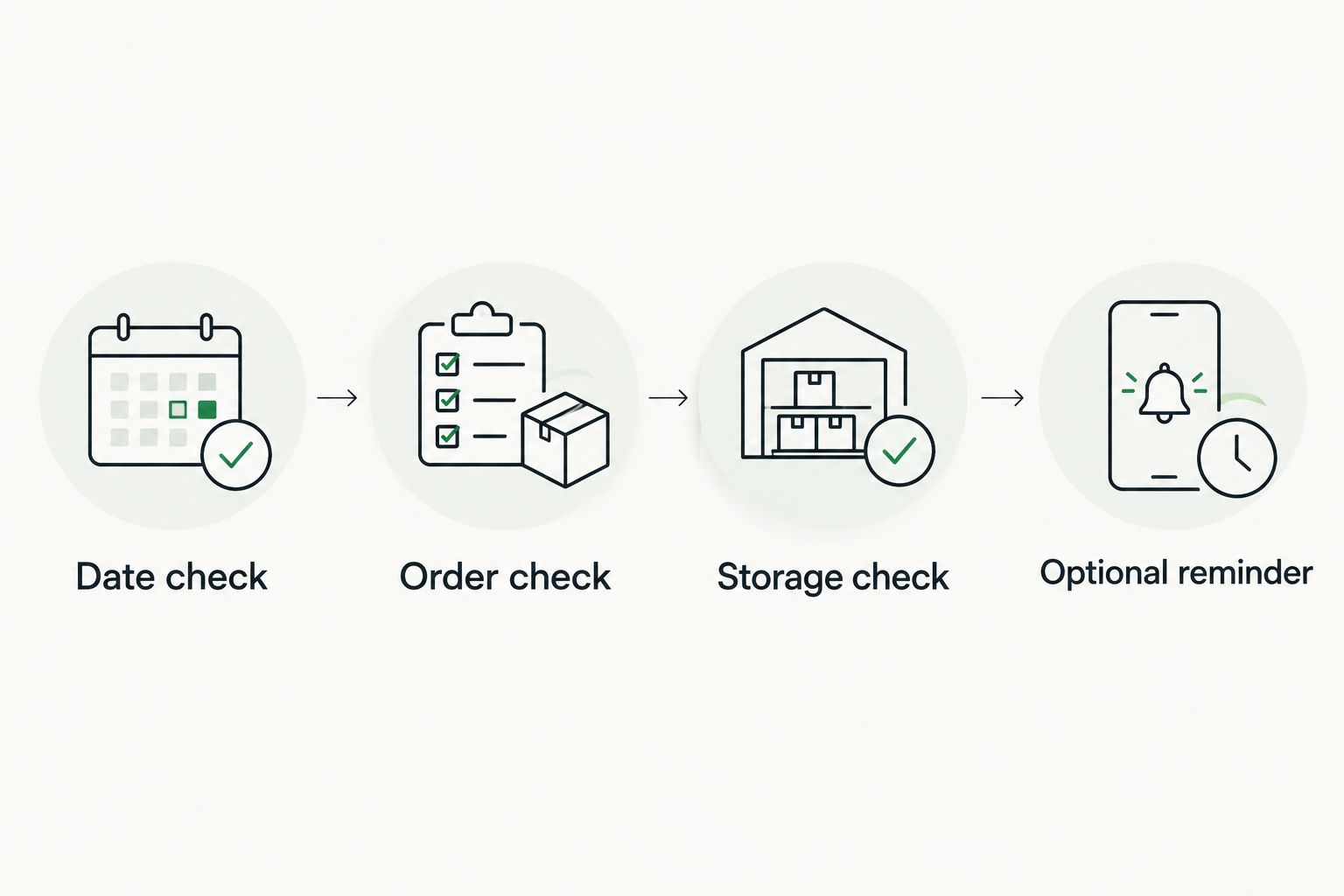
The core sequence is deliberately short: Date check, Order check, Storage check, then Optional reminder. Complete the checks before adding drinking prompts.
Test the schedule before relying on it
- Create a temporary event titled Test reminder and place it at a convenient time.
- Select Add notification, choose your preferred notification timing and select Save.
- Check that the event appears on the device you will use. Confirm that you receive the notification, then delete the test event.
- Read through the real entries in date order. Look for duplicate tasks, unconfirmed arrangements and anything that clashes with meals or appointments.
Expected result: the calendar works on your everyday device, and each remaining entry has a practical purpose.
Set aside a suggested 10-minute review rather than building an elaborate system. The test succeeds when the right information is easy to find; a high number of reminders is not a better result.
When the wedding date or routine changes
A changed wedding date requires a review, not a blind shift of every entry. A planning task can move; an existing order remains tied to its confirmed arrangements until you establish otherwise.
- Update the date in your countdown app and the Wedding day calendar event.
- Review each juice-related event separately. Move undecided planning tasks, but check confirmed order arrangements before editing their calendar dates.
- Remove drink reminders that no longer fit your meals, travel or appointments.
- Recheck timed entries if your location or time zone changes.
- Review the result on your phone, not only on the computer used for setup.
Expected result: your revised 2026 schedule reflects what is actually arranged, rather than making confirmed orders appear to have moved automatically.
The same distinction applies to food planning: personalised meal plans versus templates separates a plan shaped around individual circumstances from a reusable starting structure. Your wedding calendar is a template for reminders, not a personalised nutrition prescription.
If you want an ongoing reminder after the wedding, create a separate event for an established habit. Use Does not repeat to choose a recurrence that fits your routine, then check the end date before saving. Keep wedding administration out of that recurring event so the two purposes stay distinct.
Troubleshooting
The wedding date changed, but reminders stayed put
Review the calendar entries individually. This workflow does not link the countdown app to Google Calendar, so changing one does not update the other. Separate confirmed orders from tasks you can freely reschedule.
Notifications do not appear on your phone
Open the event and check that it has a notification. Then check the account shown in your calendar app and your phone's notification permissions. Repeat the temporary test before relying on another alert.
Reminders appear twice
Check whether you created both separate events and a recurring event for the same action. Keep the format you intend to use and remove the duplicate. Also check whether the same shared calendar is displayed through more than one account.
The planned date conflicts with bottle instructions
Follow the product's storage and use-by instructions, not the calendar. Remove the unsuitable reminder and review the remaining bottles. Do not extend a bottle's use-by date because a wedding task moved.
The routine feels uncomfortable or stressful
Delete the optional reminders and return to your usual meal arrangements. A schedule is not a reason to push through feeling unwell; seek medical advice when needed. Your wedding planning system should reduce pressure, not add it.
Customise your workflow
Keep the system small enough to maintain. For a busy 2026 wedding week, a clear order-check task and a storage note are more useful than a screen full of drink alerts.
- For shared planning: share practical collection or fridge-space tasks, not private food notes or order information.
- For travel: check storage arrangements at the destination before assigning a bottle to a travel day.
- For changing preferences: edit or delete optional reminders without treating the change as a missed goal.
- For less screen time: keep the calendar as the source of dates and use a short paper checklist for the day's practical tasks.
Review the calendar whenever a real arrangement changes. You do not need to revisit it every time the countdown drops by another day.
FAQ
How do I create a wedding countdown juice cleanse schedule?
Use your wedding countdown as the date reference and create separate calendar events for decisions, confirmed orders, storage checks and optional drinks. Keep existing meals and appointments as the foundation rather than scheduling a compulsory juice-only period.
Will my wedding countdown app automatically update my juice reminders?
Not in this workflow: the countdown and Google Calendar are maintained separately. If the wedding date changes, review each calendar entry and check confirmed order arrangements before moving anything.
When should I start a juice cleanse before my wedding?
There is no universal start date to enter into a wedding calendar. Avoid unfamiliar eating routines immediately before the wedding, and discuss a proposed juice-only programme with a healthcare professional before scheduling it.
How many bottles are in a Home Juice cleanse day?
Home Juice states seven juices per cleanse day, with 375 ml servings. Check the selected programme's current contents and instructions before planning storage or reminders.
Can I schedule a juice alongside my normal meals instead?
Yes, an optional juice reminder can sit alongside your usual meal schedule. Check ingredients and serving information, and remove the reminder whenever it does not suit your day.
Should I use separate events or a repeating reminder?
Separate events are the better starting point for changing wedding plans because each task can be edited independently. A repeating reminder suits an established optional habit, but needs an end date and occasional review.
What should I do if the juice reminder falls after the bottle's use-by date?
Delete or change the reminder and follow the bottle's instructions. A calendar date never overrides storage requirements or a use-by date.
One last thing
The most useful reminder can be the one you delete. Remove a drink prompt when it clashes with a meal, creates pressure or no longer matches the bottle instructions. A good wedding schedule protects your time; it does not turn an optional purchase into another obligation.